
The ReadIt guide
Everything the app does, in the order you will meet it: importing a book, getting better-sounding voices, moving around a chapter, setting the page to your eyes, and casting a character to the voice you want.
Importing a book
ReadIt reads standard EPUB files — the format almost every ebook store and library uses. It does not read DRM-locked purchases or PDFs.
- 1Open the Library tab and tap Add a book.
- 2The system file picker opens. Choose an .epub file from Files, iCloud Drive, Dropbox, or wherever it lives.
- 3ReadIt copies the file in, reads its table of contents, and splits it into chapters. The book appears in your library ready to play.
Opening a book
Tapping a book in the library opens its detail screen — the cover, the author, the chapter count, and a Play button that resumes wherever you last stopped.
- 1Tap the book. From its detail screen, Play starts (or resumes) reading and opens the reader.
- 2The reader shows the chapter text with the line currently being spoken highlighted. The transport bar is pinned to the bottom.
- 3Backing out of the reader does not stop playback — the audio keeps going while you browse, like a podcast app. Stop it from the player bar.
The player controls
The bar at the bottom of the reader has three controls in a row, plus the cast button and the speed control.
- Skip back 15 seconds. Long-press it to jump to the previous chapter.
- Skip forward 30 seconds. Long-press it to jump to the next chapter.
- 1×Playback speed. Tap to cycle through 0.75×, 1×, 1.25×, 1.5×, 1.75×, and 2×.
- Cast. Opens the cast sheet for this book, where every character and the voice reading them is listed.
Following along, and jumping around
- 1Tap any line of the chapter text to start reading from there.
- 2Drag the progress bar in the player to scrub within the chapter.
- 3Scroll away from the spoken line and a small pill appears pointing back to it. Tap the pill to snap the page back to the voice; the page also follows on its own once you stop scrolling.
Chapters and progress
Tap the chapter name at the top of the reader to open the chapter list. It doubles as the book's progress view.
- 1Each row shows the chapter title and its running time. A filled check marks a chapter you have finished; the one you are on is marked as playing or reading.
- 2Tap a chapter you have already started and ReadIt asks whether to Resume from where you left off or Start over.
- 3Progress is stored per chapter, not as a single bookmark, so skipping ahead to a later chapter does not lose your place in an earlier one.
Text size and the page
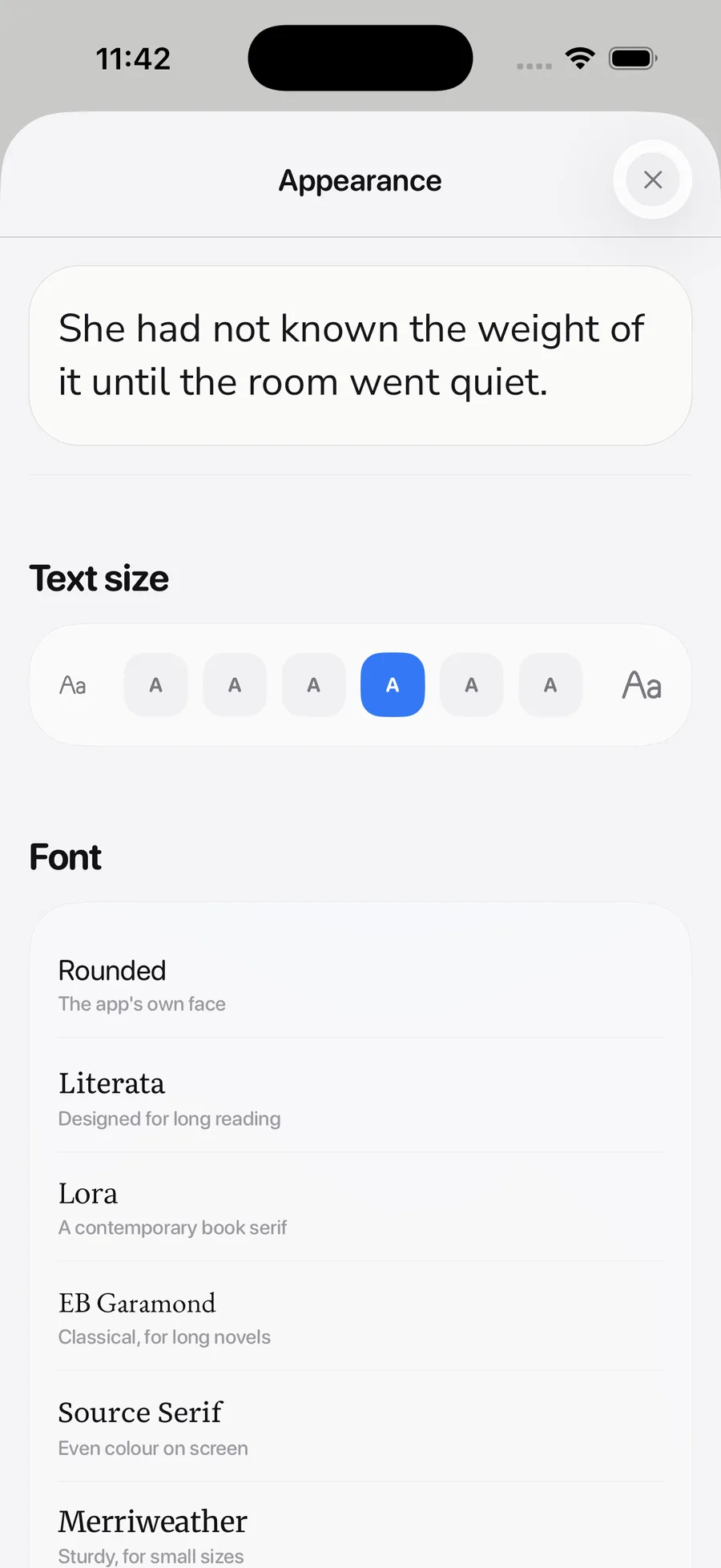
In the reader, tap the Aa button in the top-right corner. Everything here changes the page live, with a sample pinned at the top so you can see each change as you make it.
Text size
A row of A buttons from small to large — six steps. Tap a step to set the body size.
Font
A short list of reading typefaces, each name shown in its own face so you can see what it does to a page.
Line spacing & margins
Line spacing is Tight, Normal, or Relaxed. Margins are Narrow, Normal, or Wide — wider margins narrow the text column, which helps if lines feel too long to track.
Page
Four swatches: System (follows your phone’s light/dark setting), Paper, Sepia, and Night. A chosen page theme stays put even when the phone switches to dark mode.
Playback
Follow along highlights each line as it is spoken — turn it off for a plain page. Autoplay next chapter keeps reading past a chapter end.
How narration works
ReadIt reads with your iPhone's own text-to-speech — the same engine behind Spoken Content and VoiceOver. It is free, it works with no connection, and the text of your books never leaves the device.
- 1Each character is cast to a different voice installed on your phone, so dialogue does not all sound the same. The cast sheet (people icon in the player) shows who is voicing whom.
- 2Narration quality depends entirely on which system voices you have downloaded. Out of the box that is often just the standard voices, which sound robotic. Installing an Enhanced or Premium voice — a free download, covered next — is the single biggest improvement you can make.
- 3There is no cloud option and no account. Nothing about what you are reading is sent anywhere.
Installing better voices
The built-in engine sounds only as good as the voices iOS has downloaded. Out of the box a phone often has just the standard voices, which are robotic. The Enhanced and Premium voices are free and sound far more natural — but Apple only lets you install them from the system Settings app, not from within ReadIt.
- 1Open the iOS Settings app (not ReadIt).
- 2Go to Accessibility → Spoken Content → Voices → English.
- 3Pick any voice marked Enhanced or Premium and tap the download button next to it. Each is roughly 100 MB.
- 4Return to ReadIt. It notices the new voice automatically and starts using the higher-quality voices first when casting.
Recasting a character
Casting picks a voice for each character automatically — that is a guess about how someone sounds, and the one call a listener is best placed to overrule.
- 1Open the cast sheet — the people icon in the player bar, or from the book’s detail screen.
- 2Tap the character you want to change. Their current voice is ticked.
- 3Voices are grouped by gender so you can narrow the pool. Use the search box to filter by name.
- 4Tap the speaker icon on a row to hear a sample without committing. Tap the row itself to assign that voice.
- 5Star a voice to keep it at the top of the list for future books.
Free plan and Pro
ReadIt is free. The free plan limits listening time — not books, chapters, or features — to two hours a day and forty hours a calendar month. Whichever you reach first pauses playback until it resets.
- 1The daily limit resets at local midnight; the monthly limit on the 1st. Your remaining time for today and this month is shown on the Profile tab under Daily limit.
- 2ReadIt Pro removes both limits — unlimited listening, no daily or monthly cap. It also keeps your reading streak alive on days a long session would otherwise have been cut short. Open Get Pro from the Profile tab to see the current price for your region; there is a monthly and a yearly plan, and yearly works out cheaper.
- 3Usage is counted on the device. There is no account and no usage server, so nothing about what you listen to is sent anywhere.
Storage and offline
Generated narration, voice samples, and book covers are cached on the device so a chapter you replay does not have to be regenerated.
- 1Open Settings → the Storage section. It breaks down what is on disk: cached narration, voice samples, and covers.
- 2Clear cache frees that space. Your books, reading positions, and settings are untouched — only regenerable audio is removed.
- 3With the built-in engine and your voices installed, everything works with no connection: import happens locally, narration is generated on the phone, and nothing is uploaded.
Common questions
Can I read books I bought from Apple Books or Kindle?
Only if they are DRM-free. Most store purchases are locked to that store's app and cannot be exported as a plain EPUB. Project Gutenberg, Standard Ebooks, and many indie and library sources are DRM-free.
Does the app need an account?
No. There is no sign-up and no password. Your library and progress live only on your device.
Is there a free plan, or a trial?
ReadIt is free, with two hours of listening a day and forty hours a month. That is not a trial — it does not expire. ReadIt Pro removes both limits for a monthly or yearly price set per region in the App Store.
The narration sounds robotic. What do I do?
You are on the standard system voices. Install an Enhanced or Premium voice from iOS Settings — see “Installing better voices” above. It is a free download and makes a large difference.
The chapters look wrong — one huge chapter, or odd names.
ReadIt reads the book's own table of contents. A badly made EPUB with no real TOC will import as one block. Re-downloading from a well-made source (Standard Ebooks is reliable) usually fixes it.
Will playback stop if I lock my phone?
No. It keeps playing with the screen off and shows on the lock screen and Control Center like any audio app.
Still stuck? Support and FAQ has more, or email us and a person will answer.